Home / Guides / Keep Leading Zeros
Keep Leading Zeros When JSON Becomes CSV and Excel
If a code such as 00417 becomes 417 after you open a CSV in Excel, check the CSV text first. The converter may have kept the string intact; Excel may have interpreted the column as a number during opening.
Store identifiers as JSON strings, export them unchanged to CSV, then import the CSV through Data → From Text/CSV → Transform Data and set the ID column to Text before loading. Inspect the raw CSV in a text editor first. If it already says 417, fix the JSON or export step; if it says 00417, fix the spreadsheet import.
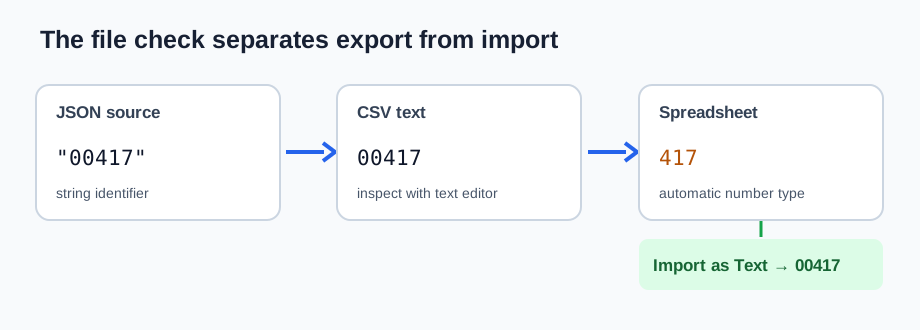
A two-row diagnostic file
Use this synthetic input. The quotes around each item_code are significant: these are identifiers, not quantities.
[
  {"item_code":"00417","label":"Blue cap"},
  {"item_code":"00008","label":"Small clip"}
]
Save the following as codes.csv. Open it in a plain text editor and confirm that the two zero-prefixed values are present.
item_code,label
00417,Blue cap
00008,Small clip
Expected data-row count: 2. Expected columns: 2. Expected ID strings: 00417 and 00008. If those strings are present in the file but appear as 417 and 8 in Excel, the loss happened on import. Microsoft documents this automatic conversion for number-looking text.
Import the ID column as text in Excel
- Open a blank workbook. Choose Data → From Text/CSV and select
codes.csv. Use the preview to check the comma delimiter. - Choose Transform Data (some Excel versions label this Edit). In Power Query, inspect Applied Steps. If an automatic Changed Type step has already changed the ID values to numbers, remove that step before setting the type; converting
417back to text cannot recover the unknown number of zeros. - Select
item_code, choose Data Type → Text, and accept replacing the current type. Then choose Close & Load. - Inspect both cells: they should read
00417and00008. Save the imported sheet as.xlsxif you need the chosen column type to persist. Reopening a CSV starts another import, so repeat the text setting when needed.
The exact controls vary by Excel version. Microsoft's leading-zero guide documents the Text data type and import path; its CSV import guide explains the difference between opening a CSV and importing it as data. Power Query's data-type documentation explains why automatically inferred types matter.
Check where the loss happened with Python
This standard-library check uses the two files above. It compares exact strings, not numeric equivalents. Run python check_codes.py next to codes.json and codes.csv.
import csv
import json

with open("codes.json", encoding="utf-8") as f:
    source = json.load(f)
with open("codes.csv", newline="", encoding="utf-8-sig") as f:
    rows = list(csv.DictReader(f))

assert len(source) == len(rows) == 2
expected = [record["item_code"] for record in source]
actual = [row["item_code"] for row in rows]
assert all(isinstance(value, str) for value in expected)
assert actual == expected, (expected, actual)
print("CSV preserved both identifier strings:", actual)
Expected output: CSV preserved both identifier strings: ['00417', '00008']. If the assertion passes and the spreadsheet shows other values, stop editing the CSV exporter and change the import type. Python's CSV documentation describes reading fields as strings with DictReader.
What if the zeros are already missing from the CSV?
Go back to the source JSON. An identifier written as 417 is a JSON number; the original width cannot be inferred from it. Ask the source system for the original code, or apply a documented fixed-width rule only when that rule truly exists. Adding two zeros to every value by guesswork can create wrong IDs. A spreadsheet display format may make 417 look like 00417, but that is not evidence that the underlying exported value was restored.
Question from a real CSV workflow
A spreadsheet user described importing an ID column as Text, saving a CSV, and seeing zeros disappear on reopening it. The direct fix is to check the saved CSV in a text editor, then import it with the ID column typed as Text each time it is reopened. For a workbook that remembers the type, save an .xlsx copy after the import.